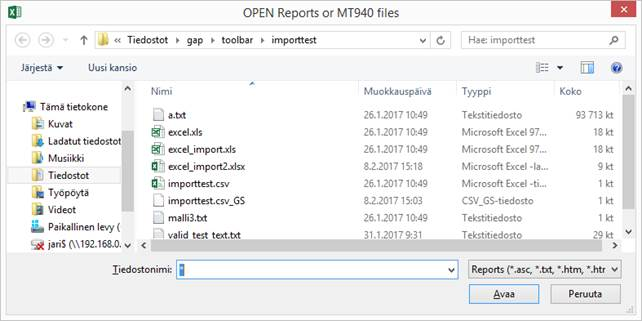
Select Import Report from the Open Menu to start importing a file. Following dialogue opens:
Open Reports dialogue.
Select the .xls or .xlsx file shown in the dialogue and click Open. If the file is not visible try inserting * as a filename and press <Enter>. Once a file is selected following dialogue opens.
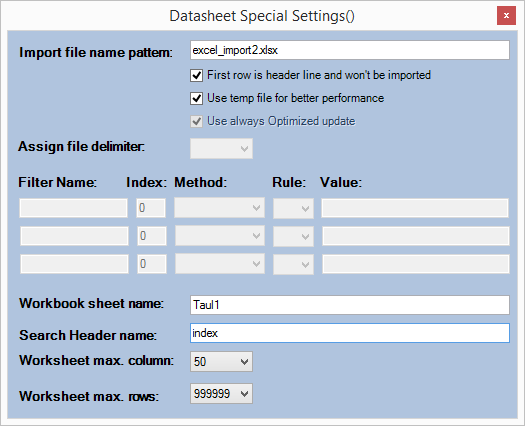
Datasheet Special Settings dialogue.
For excel files the following parameters needs to be filled:
Workbook sheet name: The name of the worksheet that is to be imported e.g. Taul1. Notice that the pipe needs to be removed.
Search Header name: The column Header name (case-sensitive) where the import is started e.g. index.
Worksheet max. column: 50 by default. adjust if needed.
Worksheet max rows: 999999 by default. Adjust if needed.
If parameters are filled incorrectly, error dialogue, Figure 70, will be shown.
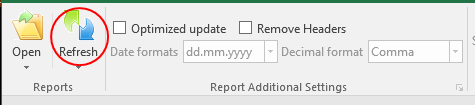
Once the data is shown in the excel Refresh command needs to be executed to complete the import.
Refresh command.
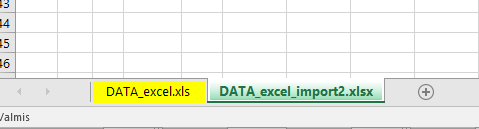
The worksheet status color changes to green after refresh since new data was imported.