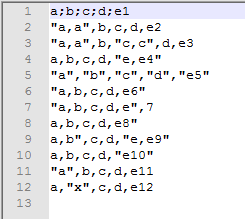
Excel toolbar has an option to import csv files which adds meaning for quota -character.. Below is an example of a csv-file, Figure 49.
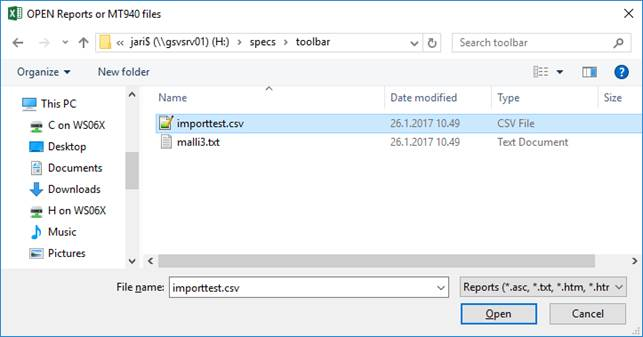
Import is started by selecting Import Report from Open command menu. That opens the Open Report dialogue, Figure 50.
Example csv-file.
OPEN Report dialogue.
Define import setting dialogue opens. Settings can be defined if Yes is selected. That opens the Datasheet Special Settings dialogue, Figure 46. Once that dialogue is closed by clicking the close-button in the upper right corner.
Data is imported.
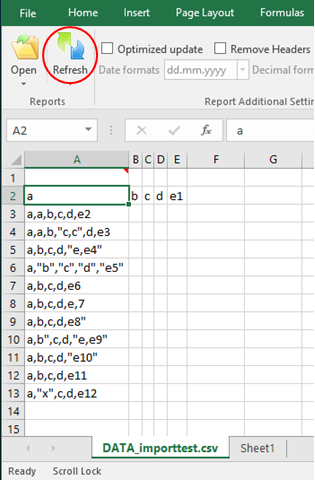
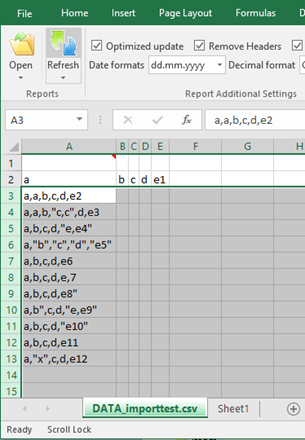
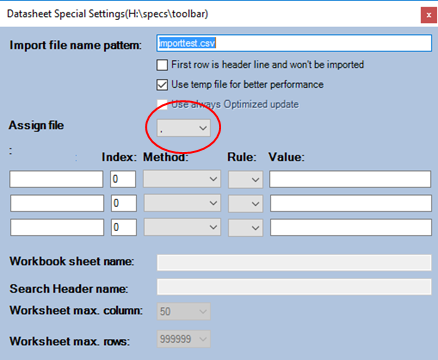
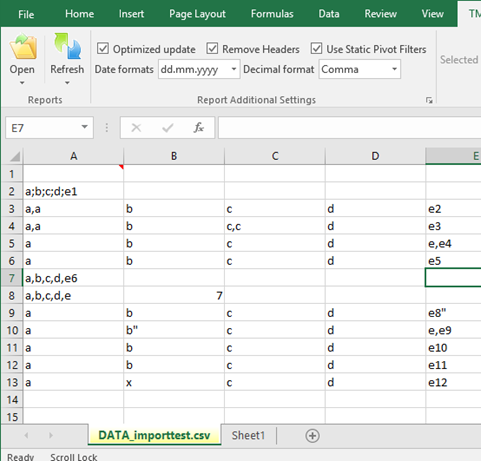
After closing the dialogue, excel toolbar imports the data from the file but it is not formulated yet, Figure 51. The refresh button must be used to apply the rules to the worksheet, see Figure 52. If the data has not been imported as needed, the Datasheet Special Settings dialogue can be opened from the dialogue launcher, Figure 63, and the delimiter can be forced to comma - (,), Figure 53. The new rules will be applied after the dialogue is closed and refresh button is pressed again in Figure 54.
Refresh has been used.
Delimiter can be forced from the Datasheet Special Setting dialogue.
Data imported using comma separator.
If the csv-file contains only one delimiter like , (comma) or ; (semicolon) excel toolbar recognizes those by default and then there is no need to force the delimiter like in the example above